Pinterest Tag & Conversions API
SonoTrix add-on for CS-Cart that installs the Pinterest Tag in the browser and sends selected events through the Conversions API.
What you need from Pinterest
- Pinterest Tag ID
- Ad Account ID (required for Conversions API)
- Conversion Access Token
Install the add-on
- Download the Pinterest Tag & Conversions API package.
- Go to Add-ons → Manage add-ons.
- Upload, install, and enable the add-on.
See also: How to Install CS-Cart Add-ons.
Part A — Pinterest Ads setup
Step 1: Find or create your Pinterest Tag
- Sign in to Pinterest Ads Manager.
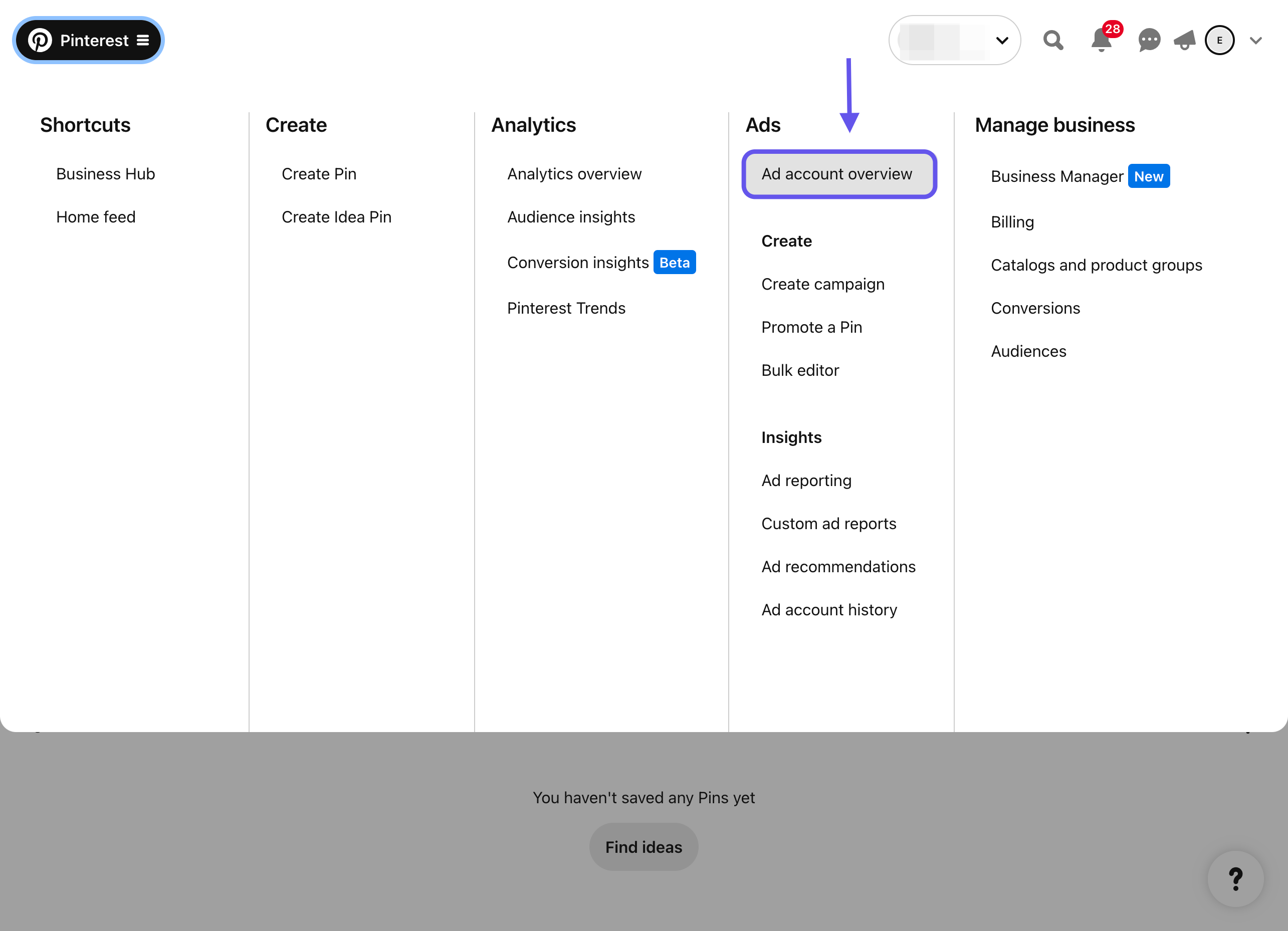
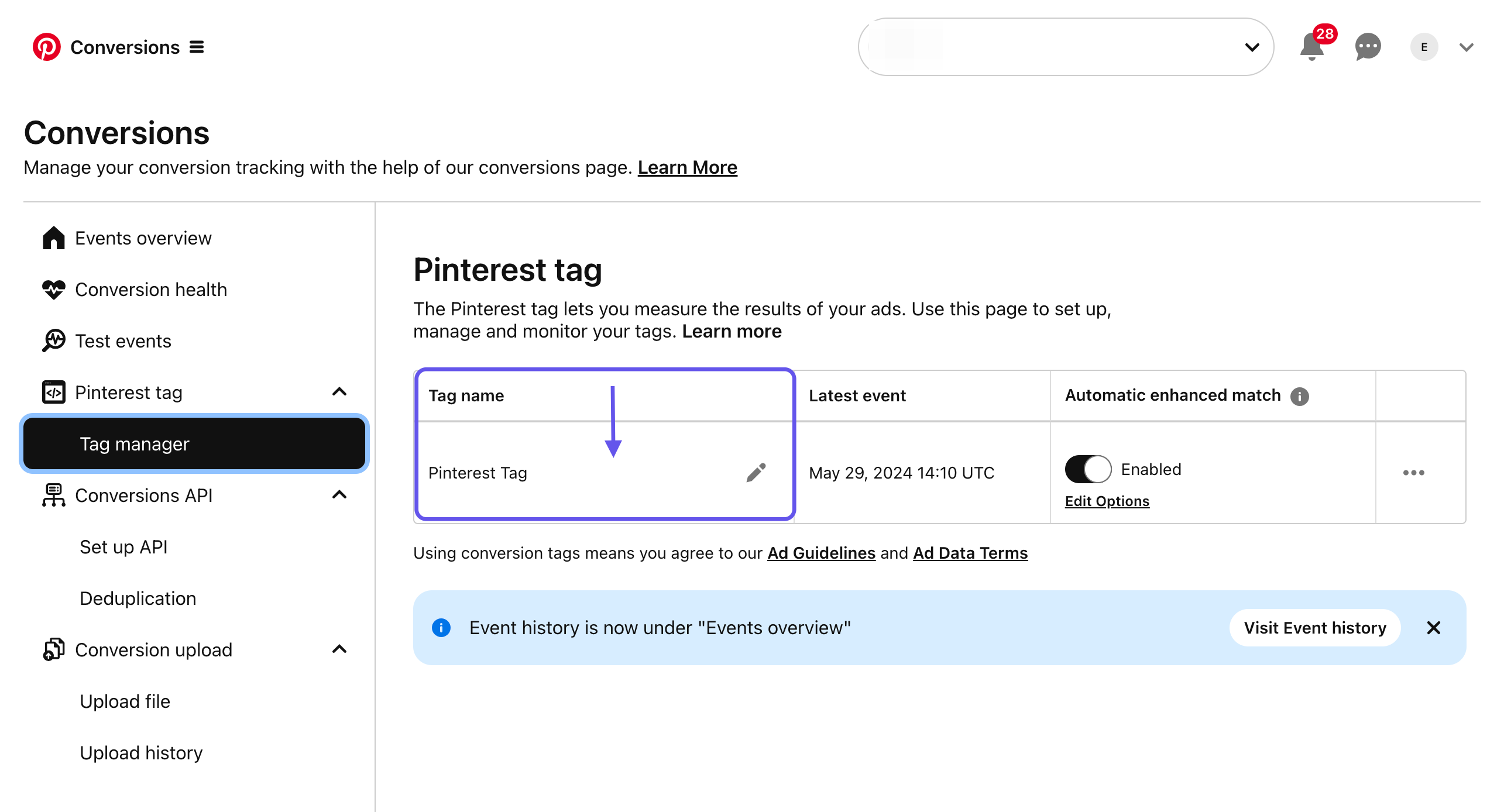
- Open Ads → Conversions / Tag (or Events).
- Create a base tag if you do not have one.
- Copy the Tag ID.
Step 2: Copy your Ad Account ID
- In Ads Manager open account settings or the account switcher.
- Copy the Ad Account ID (numeric).
- Paste it into the add-on Ad Account ID field — required for Conversions API.
Step 3: Generate a Conversion Access Token
- In Pinterest Ads / developer conversions settings for your ad account, create or open a Conversions API access token.
- Copy the Conversion Access Token and store it securely.
- Paste it into the add-on Conversion Access Token field.
note
Exact menu labels vary by Pinterest UI version. You need access to the same ad account that owns the Tag ID.
Part B — Configure the CS-Cart add-on
Go to Add-ons → Manage add-ons → Pinterest Tag & Conversions API → Settings.
Pixel Credentials
- Pinterest Tag ID
- Ad Account ID
- Conversion Access Token
- Save (leave token blank later to keep the existing token)
Pixel Events (browser)
Enable as needed:
- PageVisit
- ViewCategory
- AddToCart
- Checkout
- Search
- SignUp
Conversions API (server)
Enable server events, typically:
- Checkout
- AddToCart
- PageVisit
Storefronts Pixels
Per storefront: Disabled, Default, or Custom overrides.
Verify
- Browse the catalog and complete a checkout test.
- In Pinterest Ads Conversions / Events, confirm Tag and API events.
- Do not load the same Tag again inside GTM if this add-on is already firing it.
Official Pinterest help
- Pinterest Conversions
- Pinterest Ads Manager → Conversions / Tag