SonoTrix Addon Manager
Central guide for the SonoTrix Addon Manager: download, install, use licenses and updates, general CS-Cart add-on installation, how the manager works, and terms & data policy.
Use the On this page links on the right to jump to a section (hash URLs such as #install-addon-manager).
Overview
The SonoTrix Addon Manager simplifies installing and managing CS-Cart add-ons developed by SonoTrix from one admin interface.
Key features
- One-click installation of SonoTrix CS-Cart add-ons
- Centralized management of all SonoTrix add-ons
- License activation and status in one place
- Update notifications and upgrades
- Compatible with supported CS-Cart versions
- Automatic domain connection to the license server
- Browse other available SonoTrix add-ons
System requirements
- CS-Cart: supported Multi-Vendor or Ultimate versions
- Server access: ability to upload ZIP packages
- Administrator access: full CS-Cart admin rights
- PHP: version compatible with your CS-Cart install
- Internet: required for license validation and downloads
- File permissions: write access for the add-ons directory
Download
- Download the Addon Manager ZIP from the button above, your SonoTrix account, or the official SonoTrix site.
- Keep the ZIP file ready — do not extract it; upload the ZIP directly in CS-Cart.
Install Addon Manager
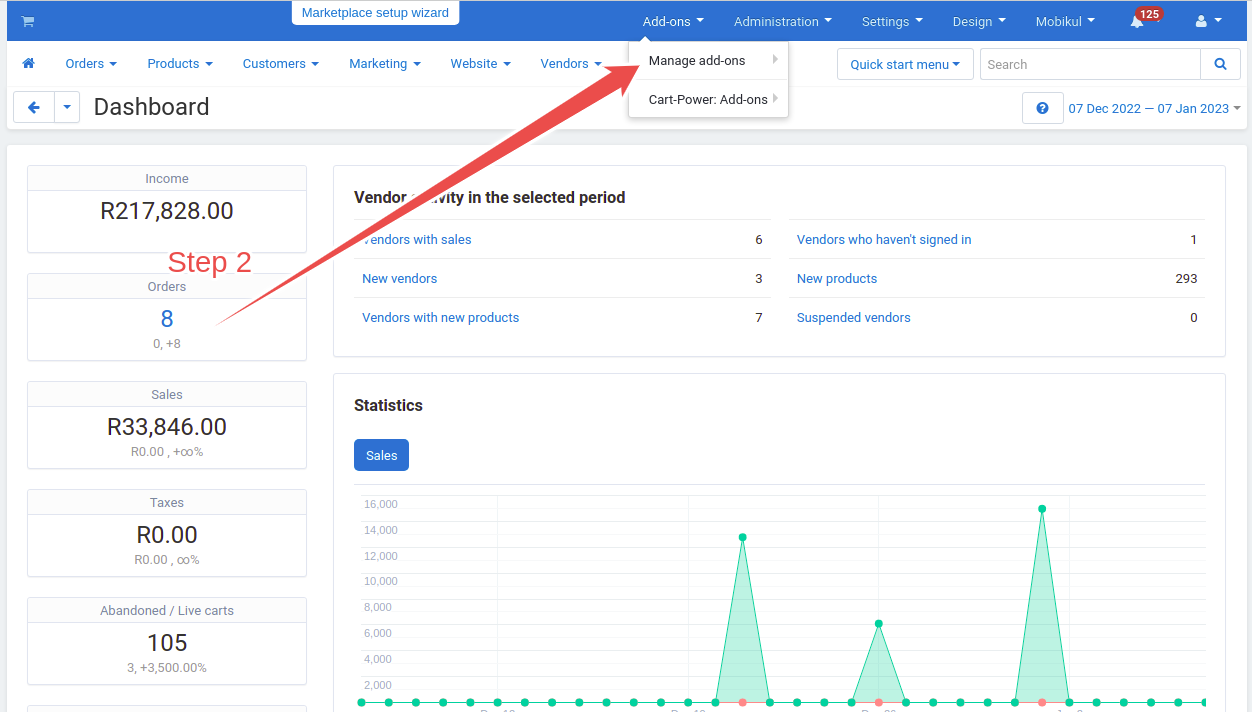
Step 1: Open Manage add-ons
In CS-Cart admin go to Add-ons → Manage add-ons, then click Upload add-on.
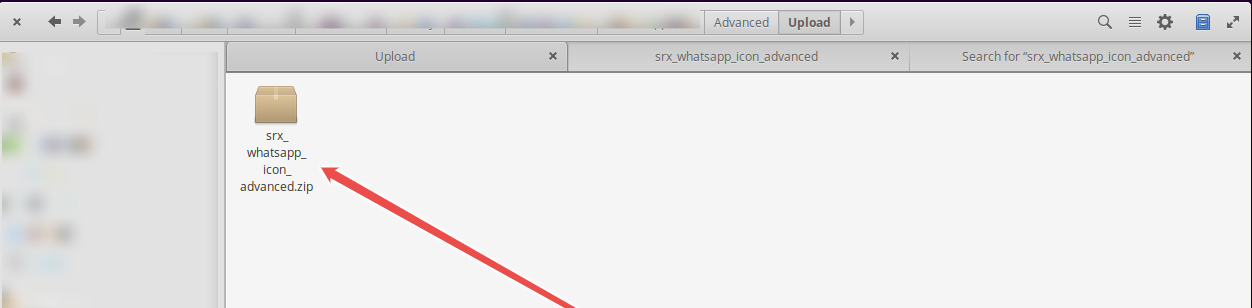
Step 2: Select the package
Choose the Addon Manager ZIP and click Upload. CS-Cart validates and processes the package.
Step 3: Activate
After upload, SonoTrix Addons Manager appears in the list (inactive). Click Activate.
Activation creates required database tables, connects your domain to the SonoTrix license server, generates a domain key, and applies initial configuration.
Ensure the server can write to the add-ons directory and related paths.
Install any CS-Cart add-on
There are two common ways to install add-ons in CS-Cart.
Automatic install
- Go to Add-ons → Manage add-ons.
- Select the add-on you need.
- Click Install.
- If it is disabled, click Activate.
Manual install (ZIP upload)
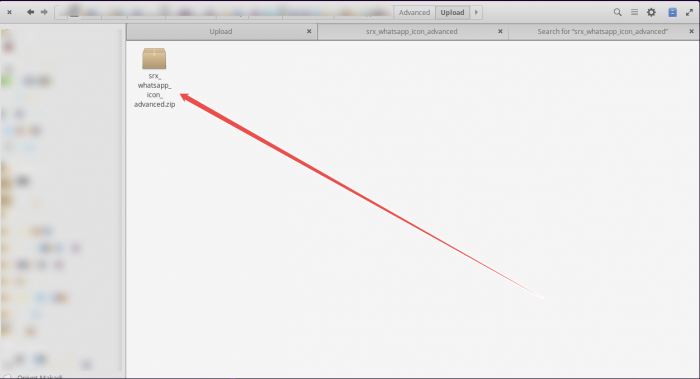
- Download the add-on ZIP.
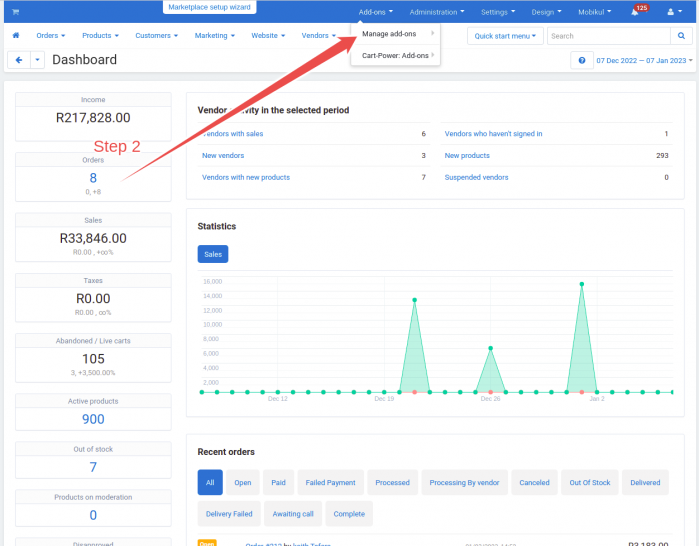
- Open the CS-Cart dashboard.
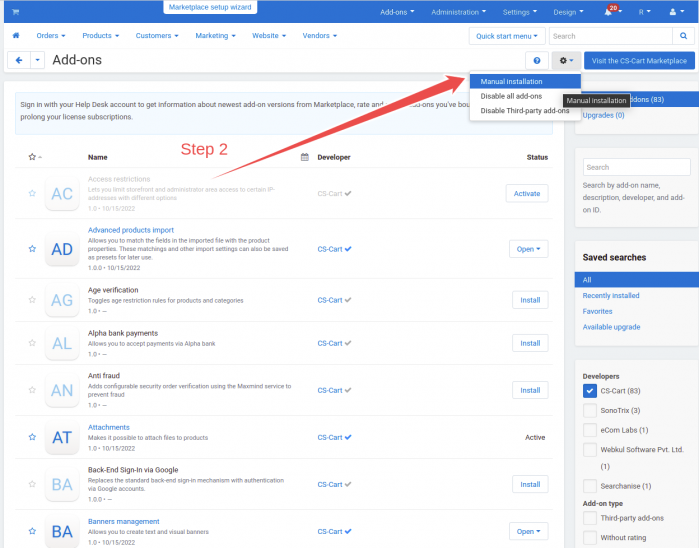
- Go to Add-ons → Manage add-ons.
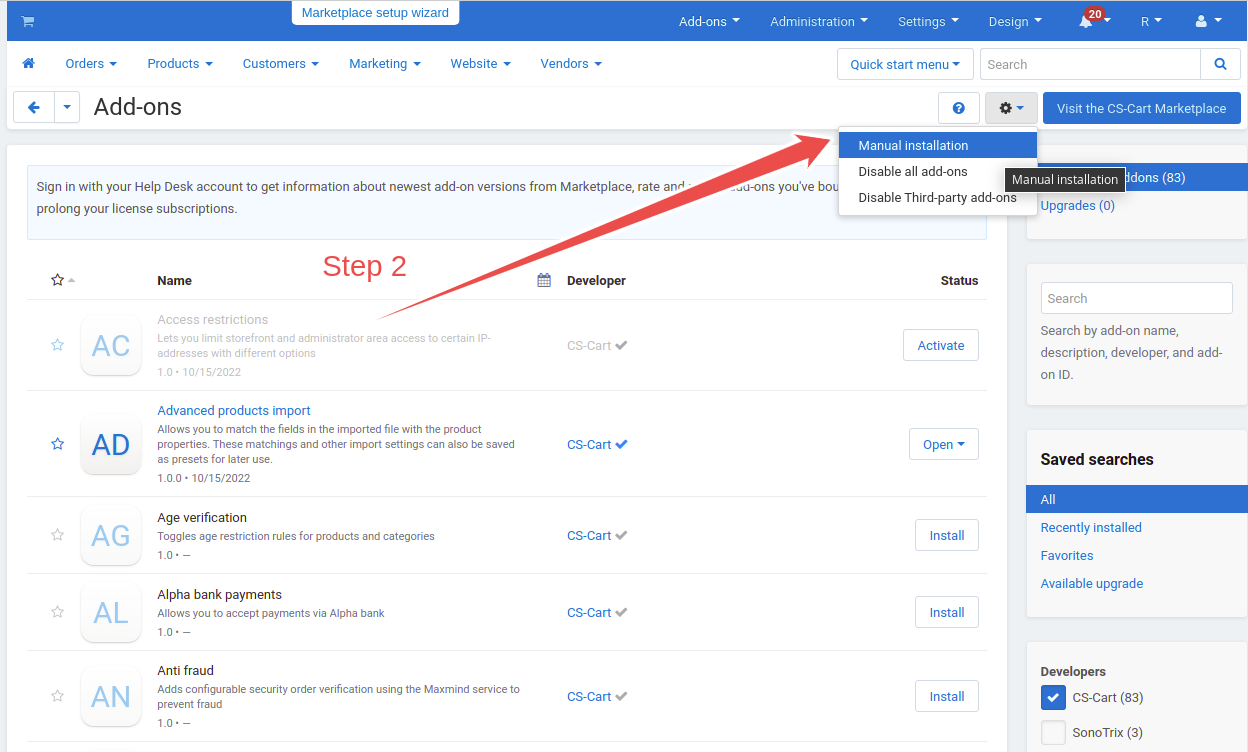
- Choose Manual installation.
- In the popup, select the ZIP from Local or Server.
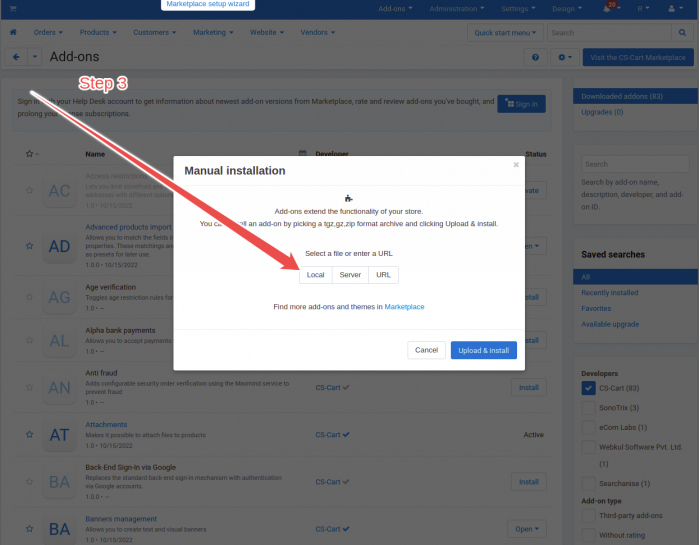
- Click Install & upload.
- When finished, set permissions if the installer asks, then activate the add-on.
Access Addon Manager
- In admin go to Add-ons → SonoTrix Addons (or the SonoTrix Addons Manager menu item).
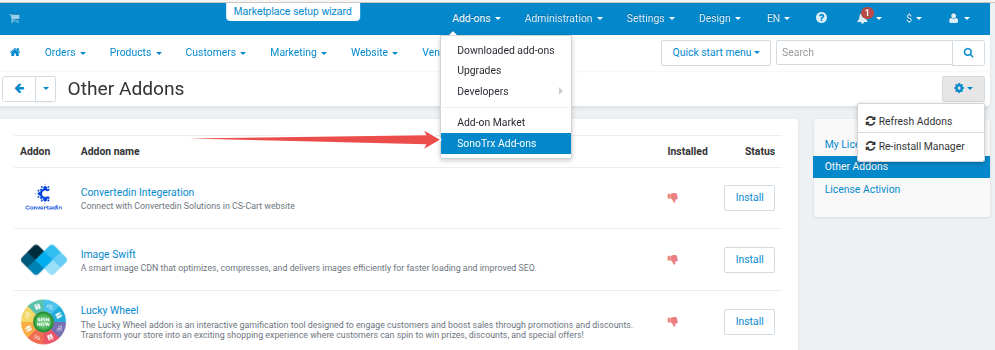
- You will see two main areas:
- Licenses — activated SonoTrix licenses
- Other Addons — available add-ons not yet licensed
Managing licenses
The Licenses tab shows activated add-ons with status, expiration, version, and actions (Install, Activate, Details, and similar).
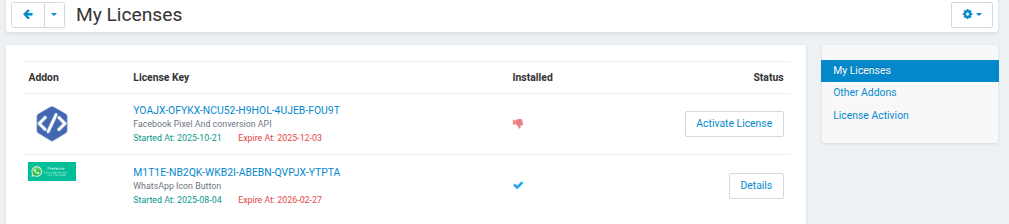
Licenses sync with the SonoTrix license server. Use Refresh for an immediate update.
Activating a license
From the Licenses list
- Open the Licenses tab.
- Find the add-on.
- Click Activate License.
- Enter the license key and confirm.
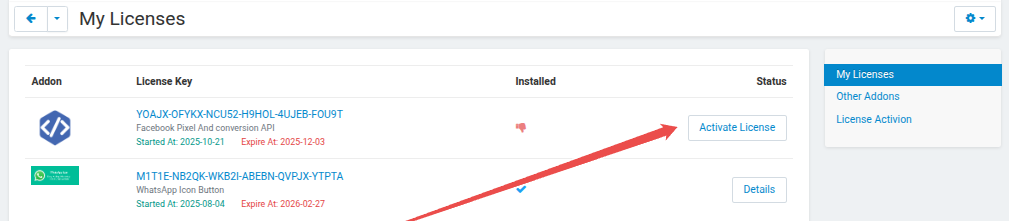
By license code
- Open License Activation in the manager.
- Enter the license key.
- Click Activate.
- After validation, the license appears in the list.

Enter the key exactly as issued. Keys are case-sensitive.
Other add-ons catalog
- Open the Other Addons tab.
- Browse available SonoTrix products.
- Use Details for more information.
- Activate a license when you have one (see Activating a license).
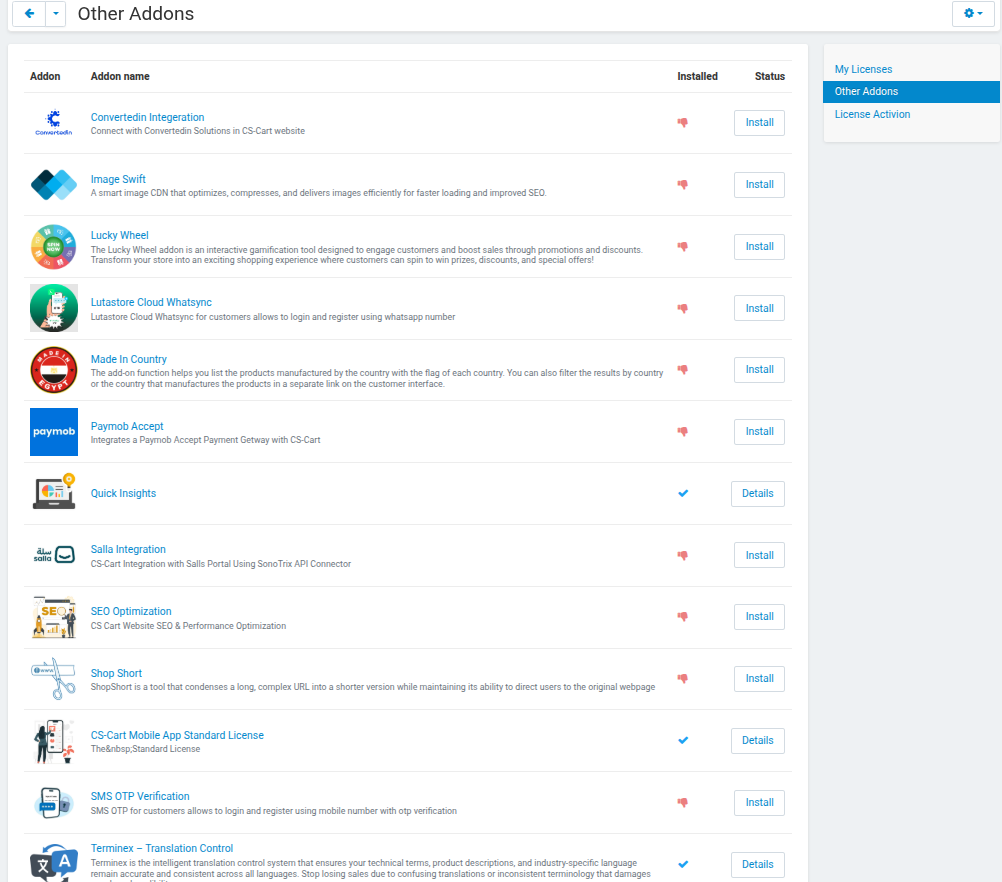
Refresh licenses and updates
- Click Refresh in the manager.
- The system updates license statuses, available versions, catalog items, and expiration dates.
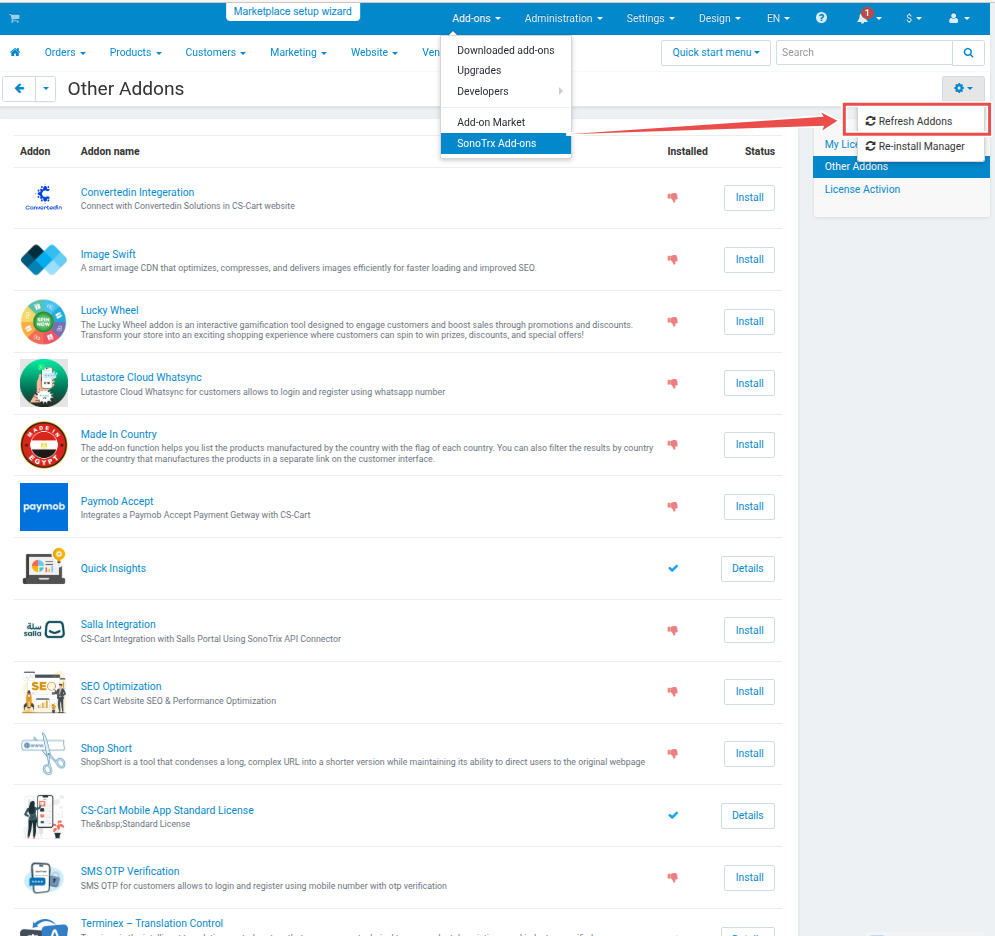
Automatic refresh also runs about every 2 hours.
Upgrade add-ons
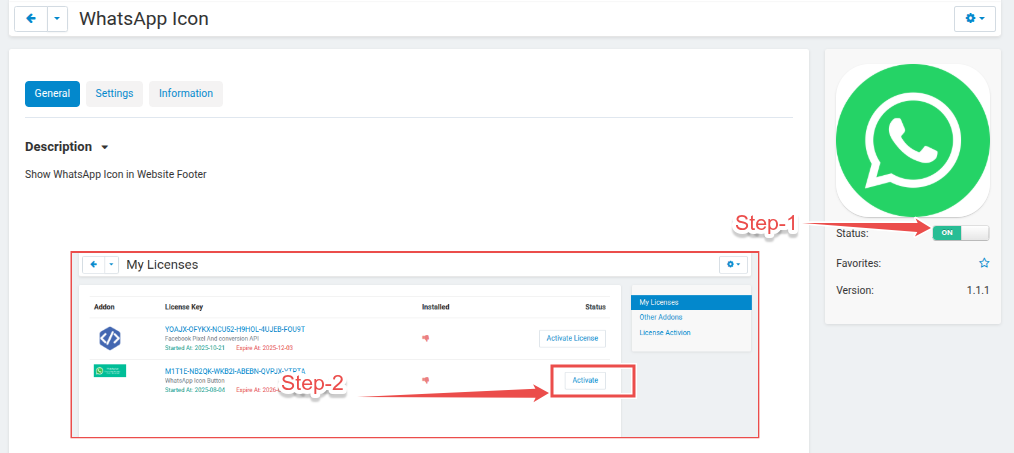
Before upgrading, disable the add-on in Add-ons → Manage add-ons.
- Disable the installed add-on.
- Return to SonoTrix Addon Manager.
- On the Licenses list, use Activate / Install to pull the latest package.
- The add-on activates after install.
Back up the store before major upgrades.
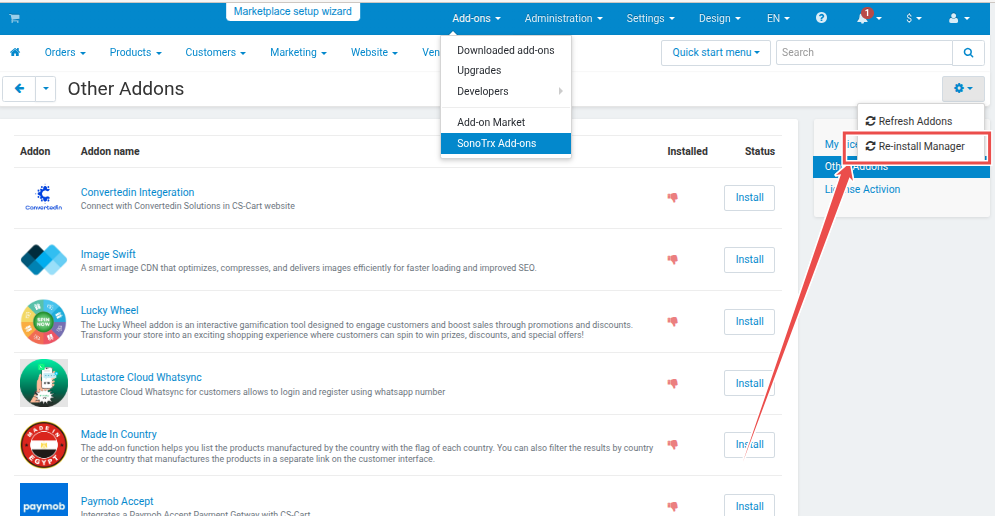
Update Addon Manager
- If an update is available, click Update in the manager.
- The latest manager version installs automatically.
- Existing licenses and settings are kept.
Access add-on settings
- Go to Add-ons → Manage add-ons.
- Open the SonoTrix add-on name or Settings.
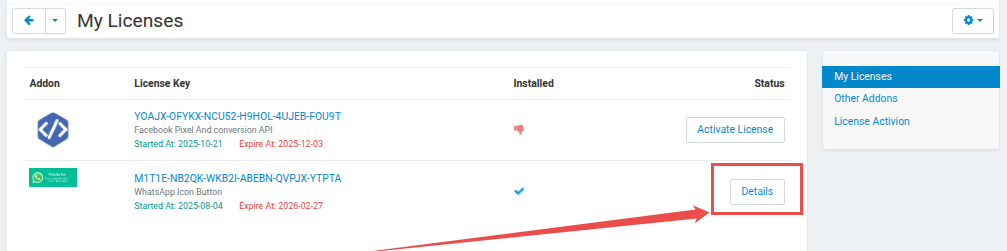
Or from the Licenses list, click Details for that add-on.
How Addon Manager works
Purpose
The manager centralizes install, activation, and update workflows for SonoTrix add-ons in one admin UI.
Communication model
- Secure outbound HTTPS requests from your server to SonoTrix for license checks, version checks, and package retrieval
- No inbound remote execution from SonoTrix into your store
Core functions
- Install authorized packages
- Validate and activate licenses
- Retrieve available updates
- Show catalog information for other SonoTrix products
Typical workflow
- Install and activate Addon Manager.
- Open it from the CS-Cart admin panel.
- Activate licenses for the add-ons you need.
- Review versions and apply updates when available.
Administrative recommendations
- Keep installed add-ons on the latest stable version
- Review license status periodically
- Create backups before major updates
Terms and data policy
Scope
Addon Manager supports add-on lifecycle operations inside CS-Cart:
- Install and manage SonoTrix add-ons
- Centralized update management
- Available versions and update notifications
- Direct updates from the administration panel
Communication
- Outbound HTTPS for license validation and update checks
- No inbound remote access by SonoTrix
Data access boundaries
Licensing and update workflows do not collect or transfer:
- Customer records
- Order records
- Product catalog data for license validation
- Other sensitive business data outside operational need
Only the minimum technical information required to identify the environment and validate authorization is exchanged.
Compliance
SonoTrix intends Addon Manager for authorized software delivery, license verification, and version management only.
FAQ
What happens if my license expires?
The add-on may be disabled until you renew the license.
Can I use the same license on multiple domains?
Depends on your license type. Check your license terms or contact support.
How do I know if an update is available?
Update notices appear in the Licenses list. You can also use Refresh.
What if installation fails?
Check write permissions and that the license key is valid. Contact support if it still fails.
Can I uninstall through Addon Manager?
Uninstall from Add-ons → Manage add-ons using the standard CS-Cart process. The manager focuses on install and licensing.
Support
- Website: sonotrix.com
- HelpDesk ticket: Open a ticket
- Email: [email protected] or [email protected] from your registered account email