Tawk Chat
SonoTrix add-on for CS-Cart that embeds Tawk.to live chat on your storefront.
You can:
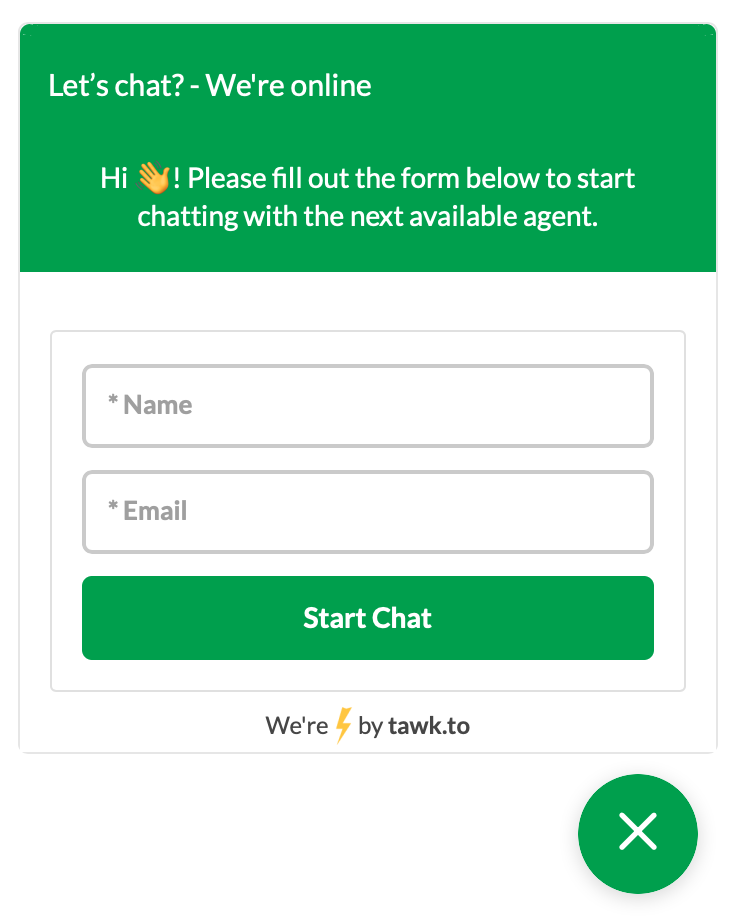
- Show a floating chat widget
- Optionally replace the product Ask a question button with Tawk chat
- Let vendors use the marketplace Tawk account or their own Property ID / Widget ID
- Configure each Ultimate storefront as Disabled, Default, or Custom
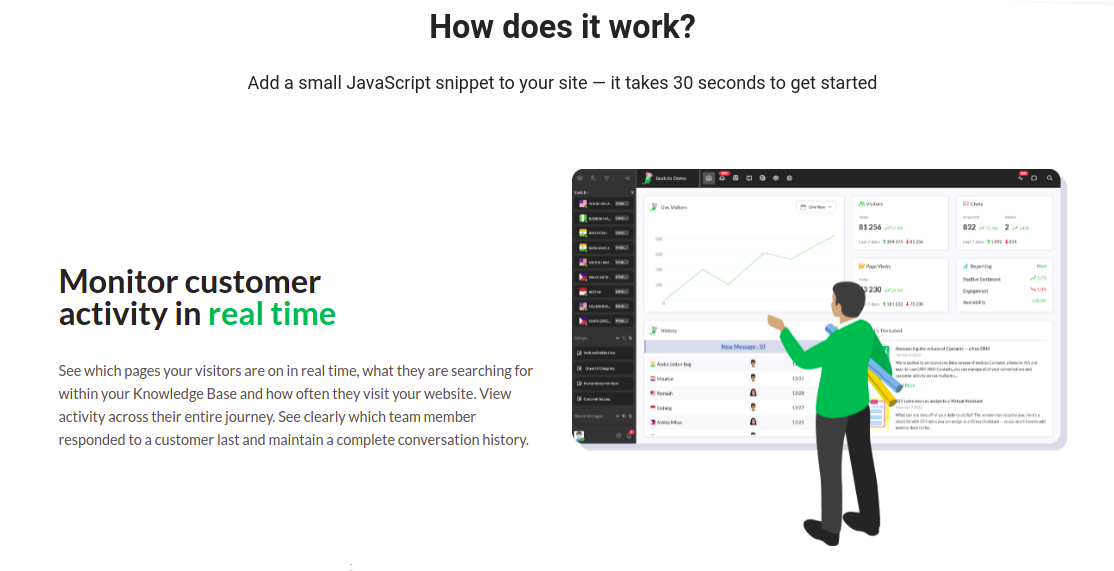
Logged-in customers are identified in Tawk with name and email using the Tawk JavaScript API visitor object.
Install the add-on
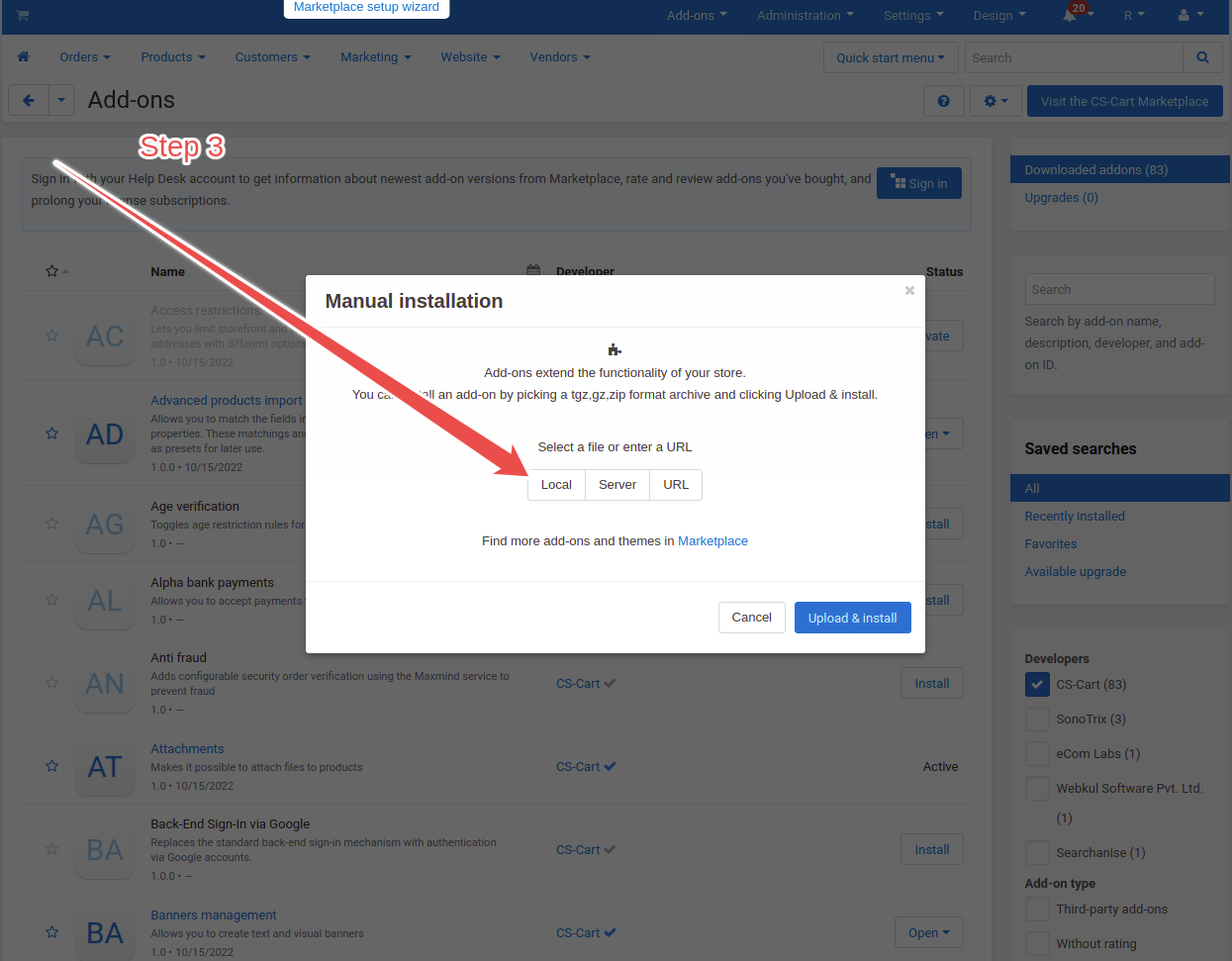
- Download the Tawk Chat package (
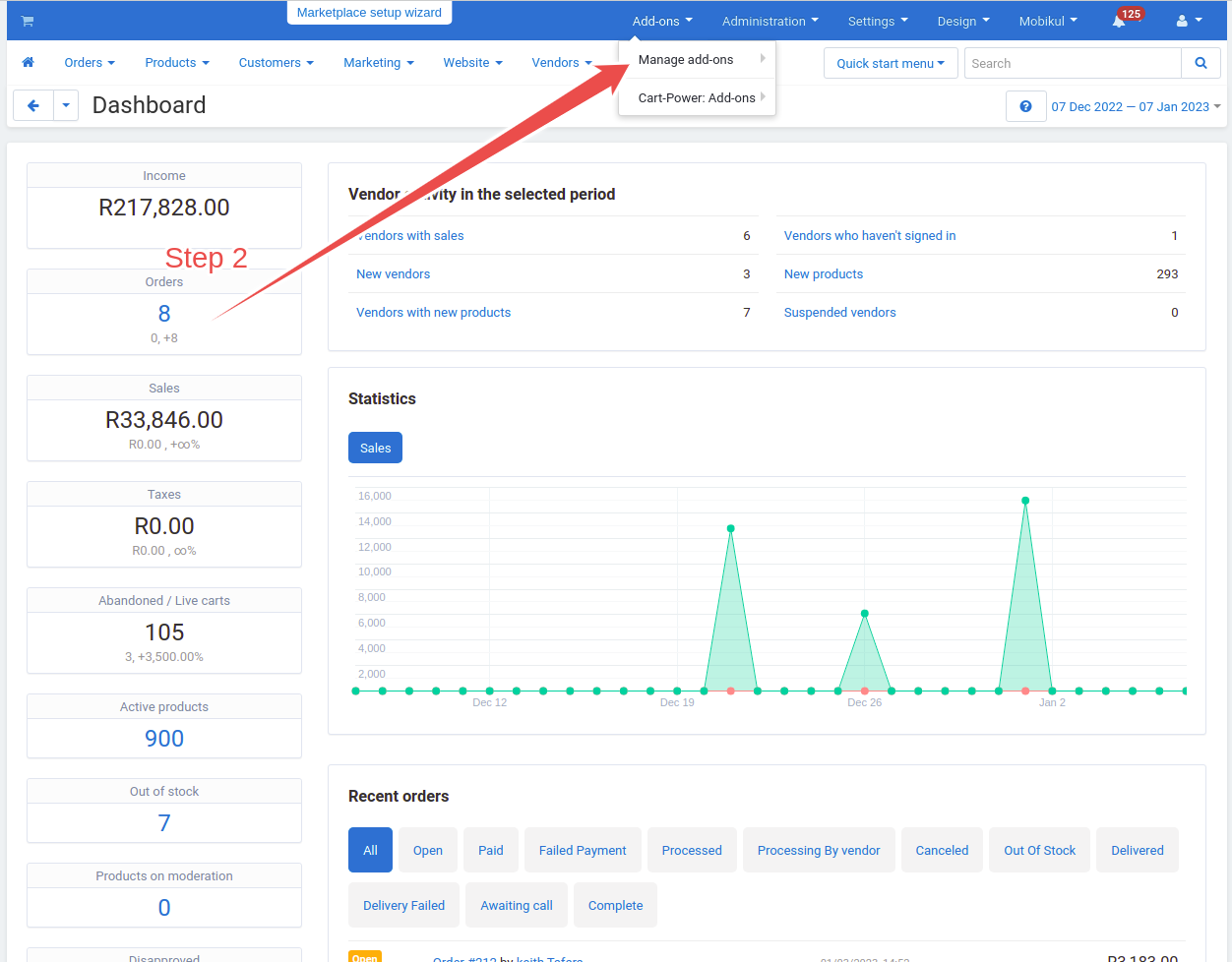
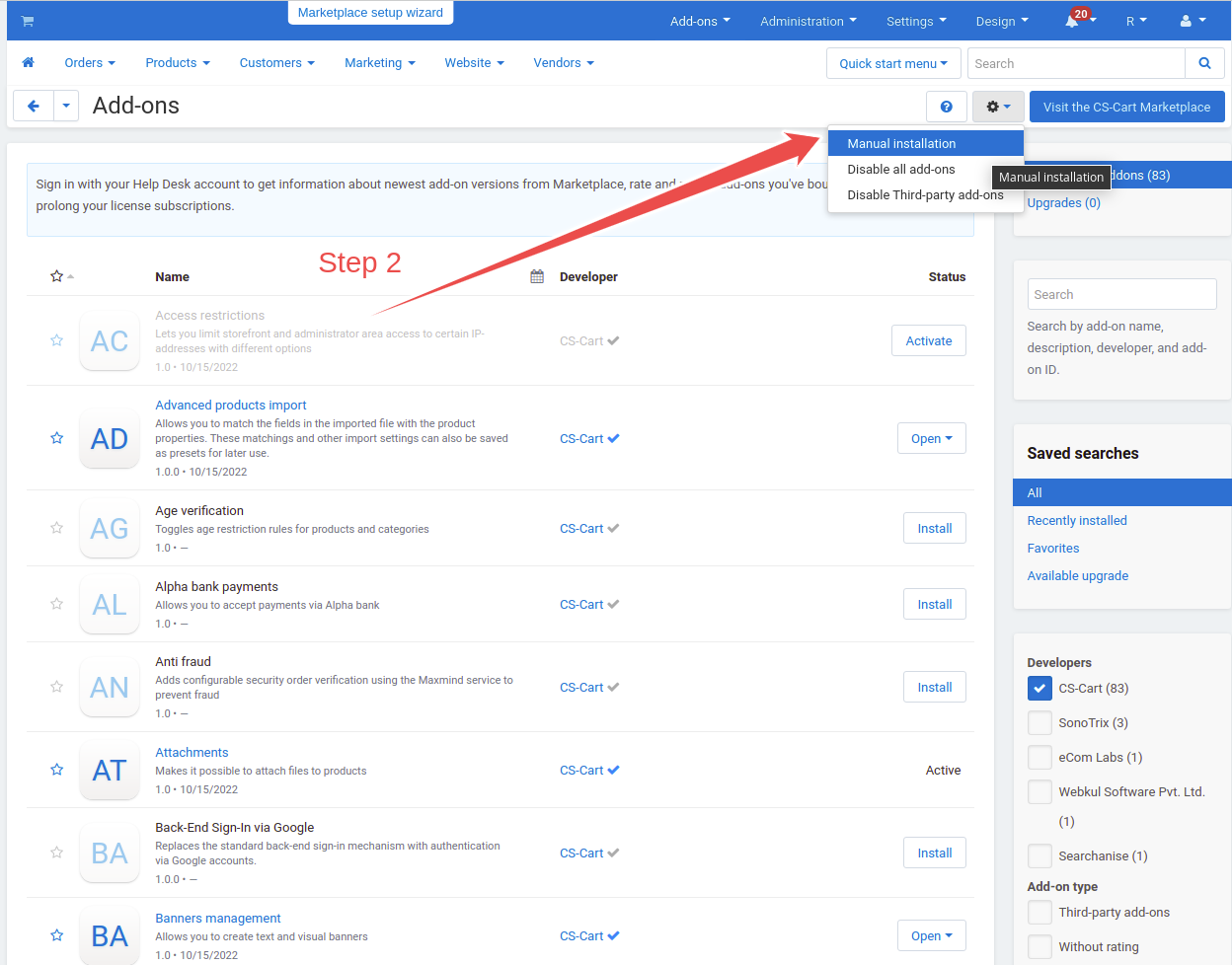
srx_tawk). - Go to Add-ons → Manage add-ons.
- Upload, install, and enable the add-on.
- Clear the CS-Cart cache once after installation.
See also: How to Install CS-Cart Add-ons.
If you previously used Tawk Live Chat (srx_tawk_live_chat), install Tawk Chat (srx_tawk) and confirm Property ID / Widget ID. The install routine copies those values from the legacy settings when the new fields are empty. You can then disable and remove the old add-on.
Get your Tawk Property ID and Widget ID
Follow the same steps shown in the add-on Tawk Sign Up and Tawk Installation tabs.
Step 1 — Create a free Tawk account
Open tawk.to and create an account.
Step 2 — Confirm registration
Complete the registration form and confirm your email.
Step 3 — Create a property
In the Tawk dashboard, add a new property for your store.
Step 4 — Copy the Property ID

Step 5 — Create a chat widget and copy the Widget ID
Step 6 — Save credentials in CS-Cart
Go to Add-ons → Manage add-ons → Tawk Chat → Chat Widget Credentials, paste both IDs, and click Save.
Features
Open Add-ons → Manage add-ons → Tawk Chat → Features.
| Setting | Default | What it does |
|---|---|---|
| Enable floating chat widget | On | Shows the Tawk bubble on the storefront. |
| Replace Ask a question with Tawk chat | Off | On the product page, the Ask a question control opens Tawk instead of the vendor communication form. |
| Enable vendor live chat settings | Off | Adds a Live Chat tab on the vendor / company page so vendors can choose marketplace or own Tawk credentials. |
Floating widget off, Ask a question on
If the floating widget is off but Ask-a-question replacement is on, the embed still loads in the background (hidden) so clicking Ask a question can maximize the chat.

Storefronts (Ultimate)
On CS-Cart Ultimate or Multi-Vendor Ultimate, open the Storefronts tab.
For each storefront choose:
| Status | Meaning |
|---|---|
| Disabled | No Tawk chat on that storefront |
| Default Chat | Use the marketplace Property ID / Widget ID from Chat Widget Credentials |
| Custom Chat | Use Property ID / Widget ID entered for that storefront only |
This matches the Disabled / Default / Custom pattern used by SonoTrix pixel add-ons.
Vendor live chat (Multi-Vendor)
- Turn on Enable vendor live chat settings.
- Open a vendor (or sign in as the vendor) → Live Chat tab.
- Choose:
- Chat by marketplace — product Ask a question uses the store/marketplace Tawk credentials.
- Chat by vendor Tawk account — enter the vendor’s Property ID and Widget ID; Ask a question switches to that widget via the Tawk
switchWidgetAPI.
Marketplace admins can edit any vendor’s Live Chat settings.
Ask a question → Tawk
Requirements:
- Replace Ask a question with Tawk chat is on.
- Chat is enabled for the current storefront (credentials present; not Disabled).
- The product page still shows Ask a question from Vendor communication settings (
show_on_product).
Then the button opens Tawk (vendor widget when vendor mode + IDs are set; otherwise marketplace).
If replacement is off, Vendor communication behaves as usual.
Logged-in visitor identity
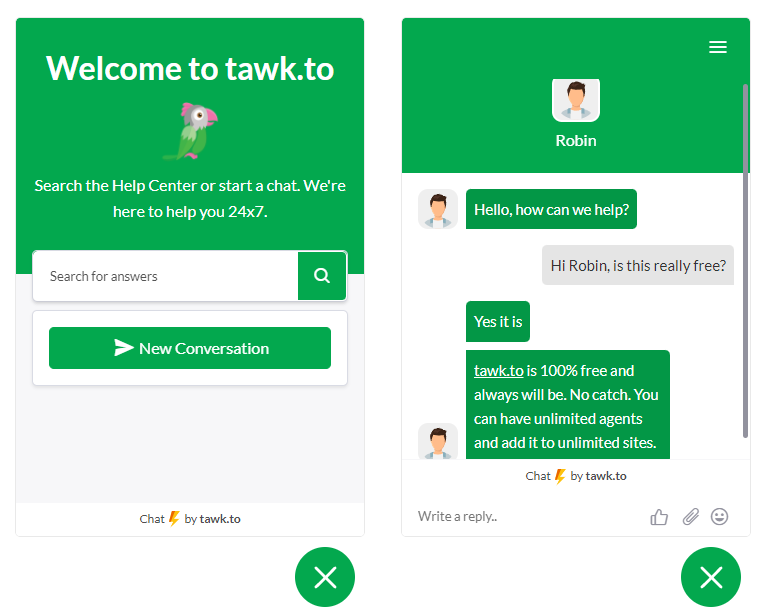
When a customer is signed in, the storefront embed sets:
window.Tawk_API = window.Tawk_API || {};
window.Tawk_API.visitor = {
name : 'Customer Name',
};
This runs before the Tawk embed script loads, as required by the Tawk JS API.
Customize appearance
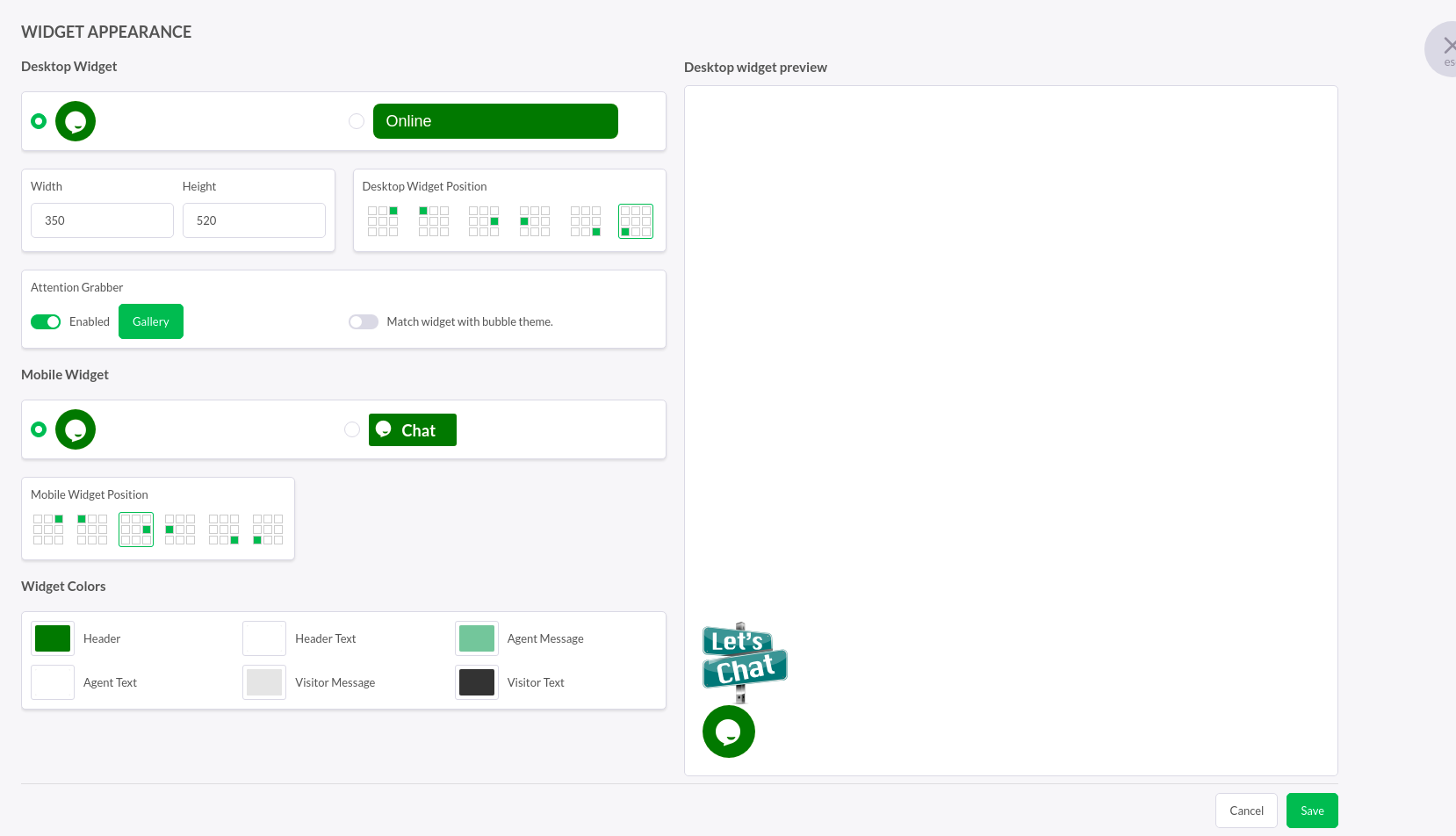
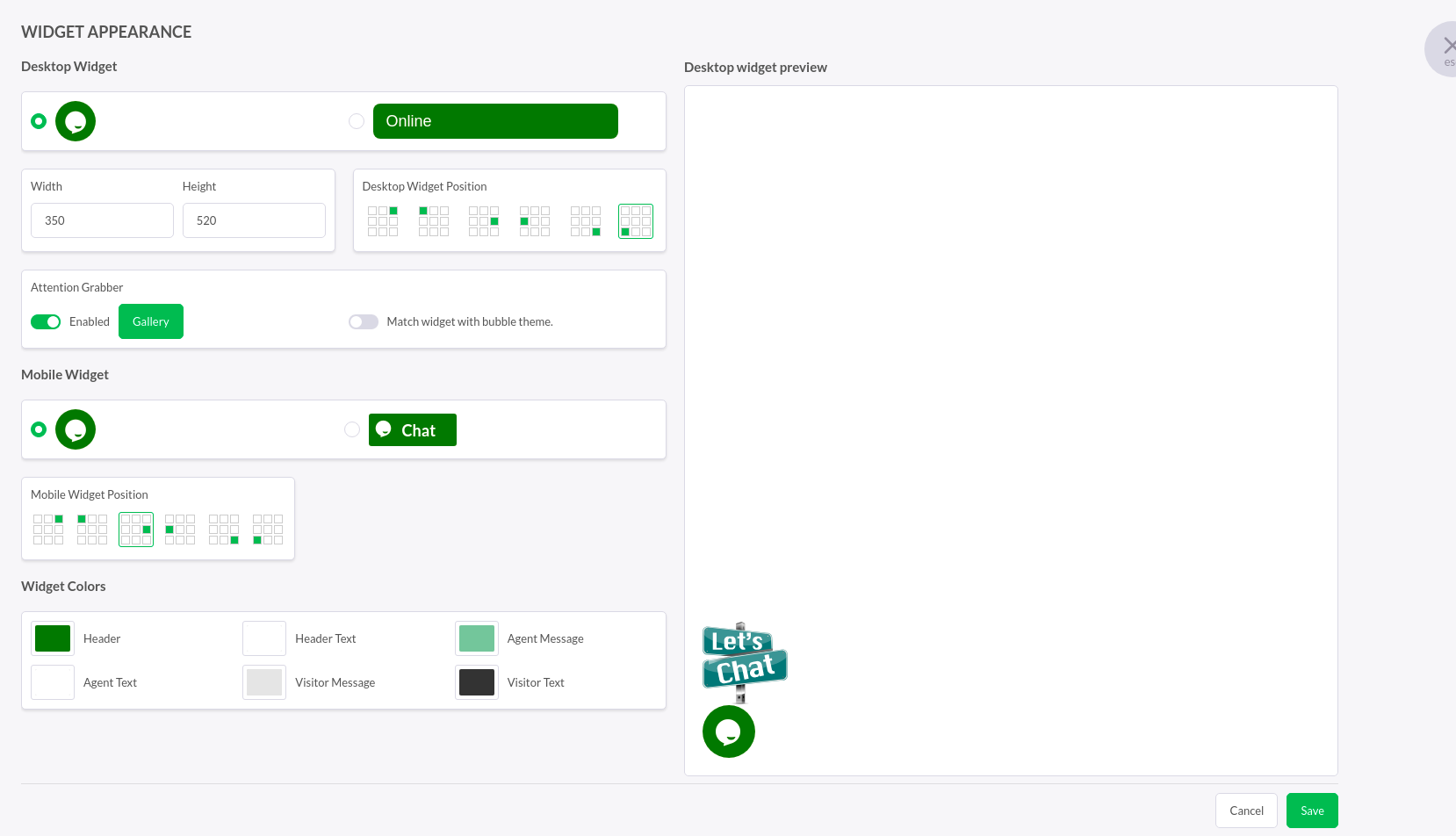
Colors, position inside Tawk, and the chat icon are managed in the Tawk dashboard. The add-on Chat Customization tab points you there.
Troubleshooting
| Issue | Check |
|---|---|
| No widget | Property ID and Widget ID saved; storefront not Disabled; cache cleared |
| Ask a question still opens login/form | Enable Replace Ask a question with Tawk chat; confirm Vendor communication shows the button on products |
| Vendor chat opens marketplace | Vendor mode is Chat by vendor Tawk account with both IDs filled; feature toggle is on |
| Name/email missing in Tawk | Customer must be logged in; hard-refresh the page after login |
| Settings tabs look unstyled | Instructional CSS is inlined in the settings templates; hard-refresh the admin page |